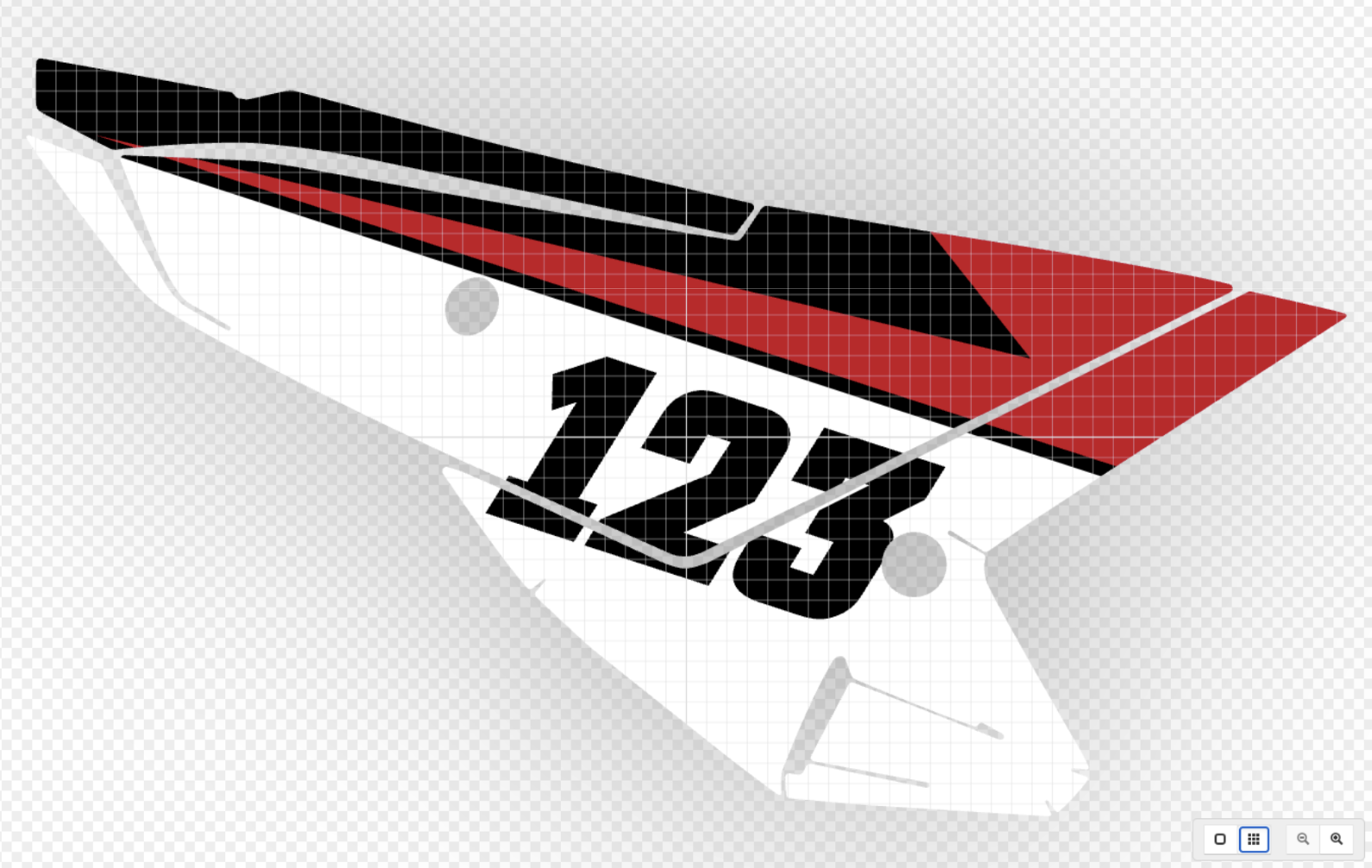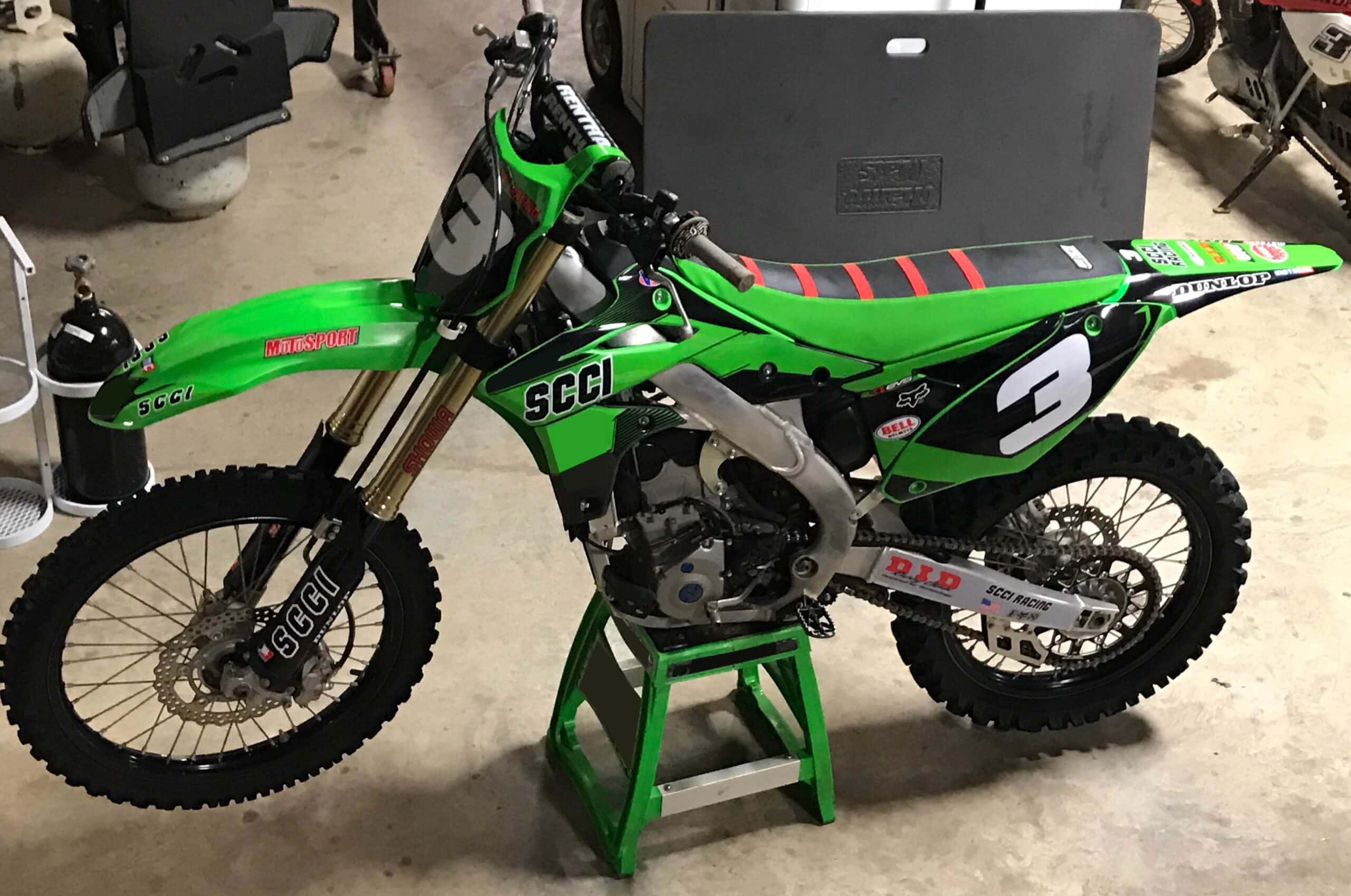
A custom graphics kit can start with a simple theme, but the smaller design elements are often what make it feel completely your own.
The Motocal Icons Library gives you thousands of graphics that you can add directly to your design, including patterns, flags, logos, stencils, spikes, and other visual elements.
You can use them as small details, build entire backgrounds with them, or combine several icons to create something completely different.
Finding Graphics in the Icons Library
To start, select the Decal Position you want to work on in the Motocal Editor and select Add Graphic. From there, you can browse the Icons Library or search for something more specific.
The library uses searchable tags, so rather than scrolling through thousands of options, you can search for terms related to what you want. This could include your country, vehicle make, patterns, flags, stencils, spikes, or different graphic styles.
Once you find an icon you like, select it and it will be added directly to your decal.
Resize, Move, Rotate and Recolor
Adding the graphic is only the starting point. Once an icon is selected, you can resize it using the Adjust controls, move it around the decal, rotate it, or flip it to suit the direction of your design.
This is particularly useful when working around unusual plastic shapes. A graphic that looks right horizontally on one position may work much better rotated or flipped on another. There is no need to accept the icon exactly as it first appears. Move it around, resize it, rotate it, and experiment until it works with the rest of the design.
Use Layers to Build the Design
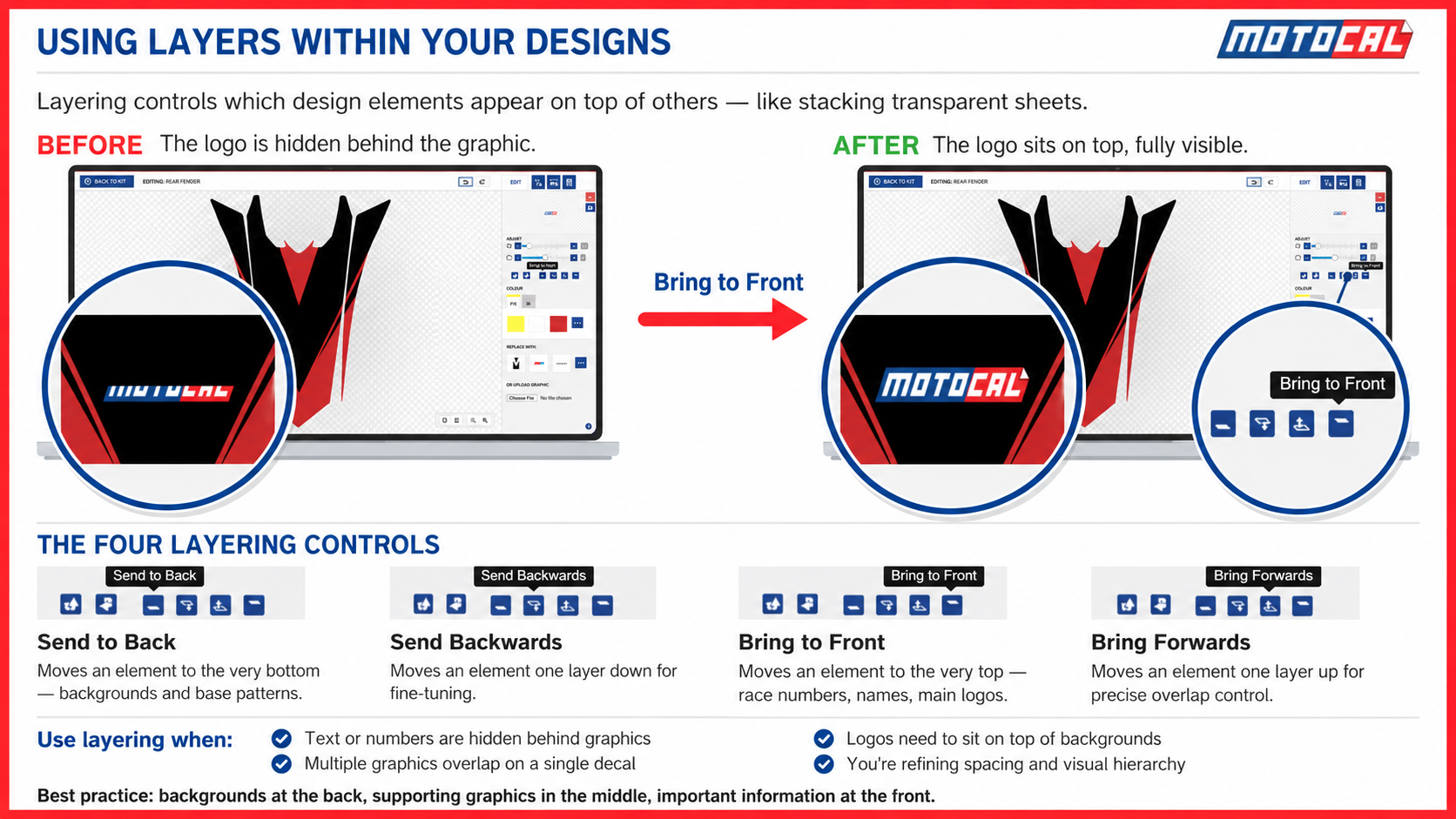
As you start adding more graphics, layers become important. The Editor allows you to bring elements forward, send them backward, move them completely to the front, or send them all the way to the back.
A simple way to think about it is to build the design from the bottom up. Your main colors, large patterns, and background graphics normally sit toward the back. Supporting graphics such as spikes or stencils can sit above those. Important elements such as race numbers, rider names, and key logos can then be brought to the front.
This prevents an important logo or number from accidentally disappearing behind another graphic.
Turn an Icon Into a Background
Icons do not have to stay small. One useful design technique is to take a pattern or graphic and turn it into the background of an entire decal.
Add the graphic, increase its size until it covers the decal, position it where you want it, and then use Send to Back. You can then place numbers, names, logos, and other graphics above it. This is a simple way to build a much more customized design without having to create a background externally and upload it.

Experiment With Stencils and Gradient Spikes
The library also contains graphics that can be used to create more detailed effects.
Search for Stencil to find elements that can add texture and layered shapes to a background. Searching for Spike gives you graphics that can be resized, rotated, flipped, and positioned to create sharper lines and a stronger sense of movement across the kit.
Combining these different elements is where the Icons Library becomes much more than a collection of individual graphics.
Add Your Own Graphics
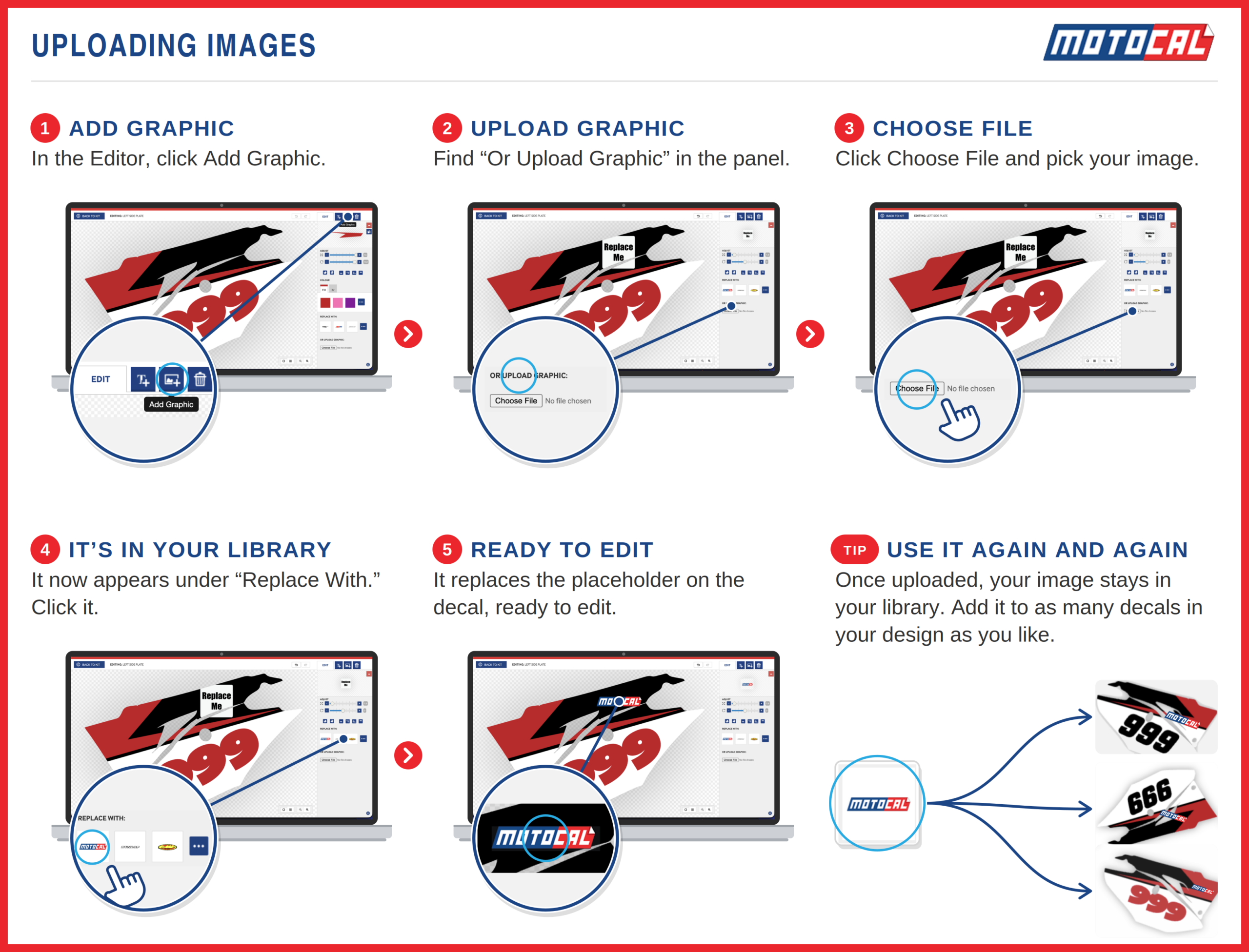
You are not limited to what already exists in the library. If you have your own logo or graphic, you can upload it to your design and position it alongside Motocal’s existing icons.
Users with their own vector logos can also contact Motocal about having them added to the searchable Icons Library, making them easier to access again for future designs.
Try Things
The easiest way to get more from the Icons Library is simply to experiment.
Try a different pattern. Make a graphic much larger than you normally would. Move something behind another layer. Flip a spike. Change the color. If you accidentally delete something you wanted to keep, the Bin tool can be used to recover recently deleted design elements.
The Icons Library gives you the building blocks. How you combine them is what makes the finished graphics kit yours.