A good graphics kit is not only about choosing the right colors, logos, and graphics. Placement matters just as much.
A logo that sits slightly too high, text that is not properly centered, or graphics that do not line up across different parts of the vehicle can make an otherwise strong design feel unfinished. That is where Grid Lines can help.
Grid Lines are one of the simplest tools inside the Motocal Editor, but they can make a big difference when you are trying to build a cleaner, more balanced, and more professional-looking graphics kit.
What Do Grid Lines Actually Do?
Grid Lines add a visual grid over the decal you are currently designing.
The grid does not become part of the final printed graphics. It is simply there as a guide while you work.
Instead of positioning every element entirely by eye, the grid gives you reference points that can help you judge spacing, alignment, and positioning more accurately. This becomes particularly useful when you are working with multiple design elements.
For example, you might have a race number in the center of a number plate, a rider name underneath it, and several sponsor logos positioned around the edges. Without any reference points, it can be difficult to tell whether everything is properly lined up.
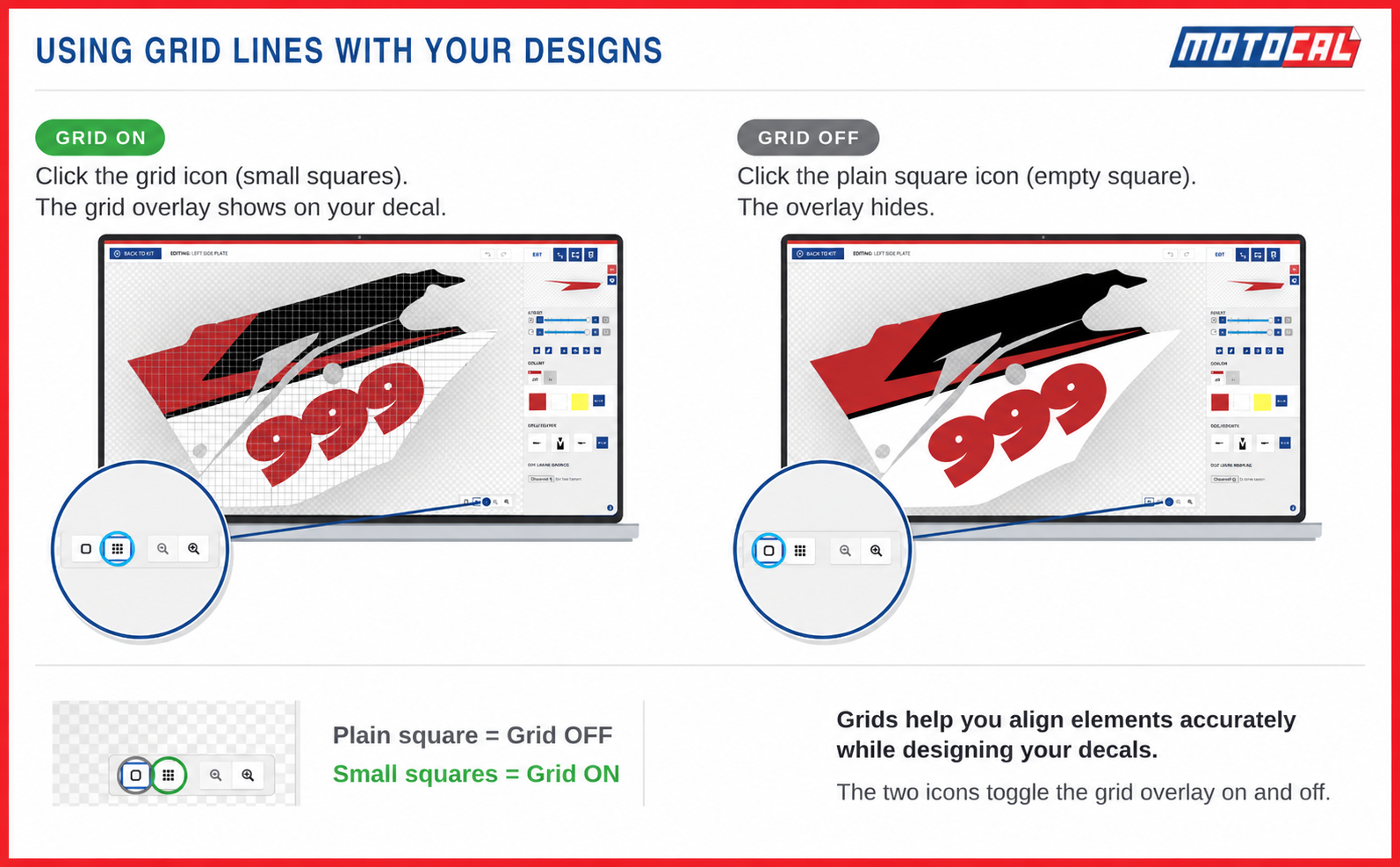
Turning on the grid gives you a much clearer structure to work with. To turn them on or off, look at the bottom right corner of the Decal Editor screen, you will see two icons: clicking on the plain square one would turn off the Grid and clicking on the icon with small squares would turn on your Grid layout. Look into the infographic below for a visual understanding of how to turn grids on and off.
Use Grids to Align Text
Text often looks simple until you start trying to position several pieces of it together. You might have a rider name, number, team name, website address, or social media handle on the same decal.
The grid can help you keep these elements lined up with each other instead of having one piece of text sitting slightly farther left or right. It is also useful when you are trying to center text within a particular area of the decal.
Rather than repeatedly moving the text and guessing whether it looks right, you can use the grid as a visual reference and then make smaller adjustments from there.
Position Logos more Consistently
The same idea applies to logos. A graphics kit can quickly become busy when several sponsor logos or brand logos are added to the same area. Using the grid helps you control the spacing between those logos and position them more consistently.
You can also use it when resizing uploaded images. If you are increasing the size of a logo or graphic, the grid gives you a clearer idea of where the edges are moving and whether the image still feels balanced within the decal. This is particularly helpful when you are trying to match the size or position of similar elements.
Build Cleaner Graphic Layouts
Grid Lines are not only useful for text and logos. They can also help when placing larger graphics, shapes, patterns, or other design elements. Suppose you are building a background using several graphics or adding elements such as gradient spikes. The grid gives you a reference for positioning those elements relative to one another.
You can use it to control spacing, keep repeated elements consistent, or make sure a graphic follows the direction of the decal in a way that looks intentional. These small adjustments can have a big effect on the finished design. A professional-looking layout usually comes from getting lots of small details right rather than relying on one big graphic.
Do not expect Every Grid to Look Perfectly Centered
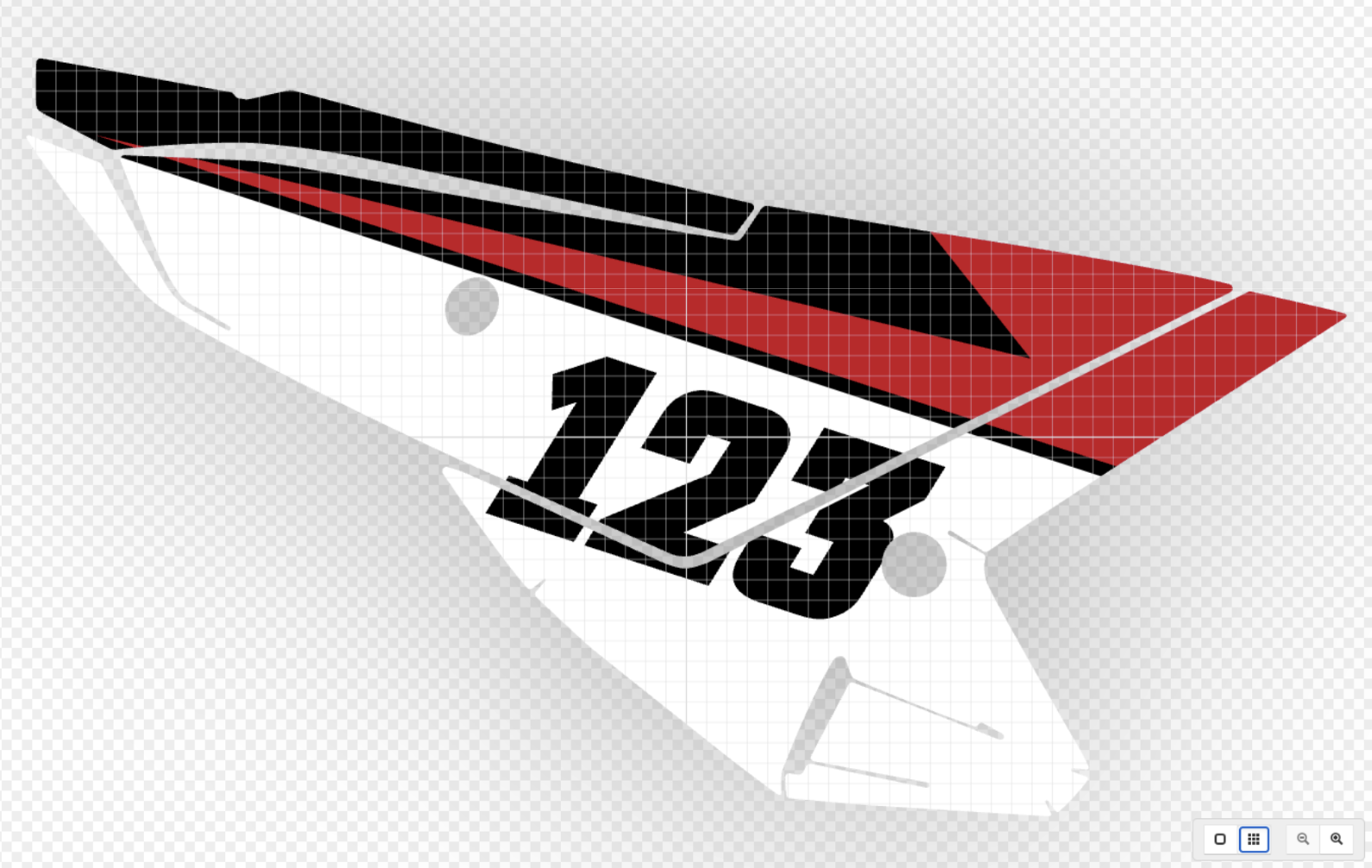
There is one important thing to remember when using Grid Lines. The grid may sometimes appear slightly off-center compared with the shape of the decal.
That does not necessarily mean anything is wrong. Vehicle plastics are not always perfectly symmetrical, and Motocal’s templates are designed around the actual shape of those parts.
Because of that, the center of the grid and the visual center of an unusual decal shape may not always look exactly the same. Use the grid as a guide, but also trust what you can see. Good design still requires visual judgment.
Turn the Grid On and Off While You Work
You do not need to leave Grid Lines visible all the time. Inside the Motocal Editor, you can turn them on or off using the controls in the bottom-right corner.
The grid icon with the small squares turns the grid on, while the plain square icon hides it. A useful workflow is to turn Grid Lines on while positioning and aligning elements, then switch them off regularly to look at the design without anything covering it. That gives you the best of both approaches.
You get the accuracy of the grid while you are building the design, but you can still step back and judge how everything actually looks.
Small Tool, Big Difference
Grid Lines will not design the graphics kit for you. What they do is make it easier to place the elements you have already chosen with more control.
They can help keep text straighter, logos better spaced, graphics more balanced, and multi-part designs more consistent. The more detailed your design becomes, the more useful that extra reference becomes.
So if you are trying to take your Motocal design from looking good to looking properly finished, Grid Lines are one of the easiest tools to start using. Turn them on, line things up, make your adjustments, and then hide them again to see the finished result. Sometimes the smallest tools make the biggest difference.